Thursday, August 23, 2018

Comparing IST date objects using JavaScript

This code snippet for comparing the two date object that has IST short date format string like "dd/mm/yyyy".

All you need to do is replace the string variable dtStr and Javascript Now method.


 1
 2
 3
 4
 5
 6
 7
 8
 9
10
11
12
13
14
15
16
17
18
19
20
21
22
23
24
25
26
27
28
var dtStr = "24/11/2018";
var r=dtStr.split('/');
var dtObj = new Date(r[2],r[1]-1,r[0]);

var today = new Date();
var day = today.getDate();
var month = today.getMonth()+1; 
var year = today.getFullYear();
if(day<10)
{
    day='0'+dd;
} 
if(month<10)
{
    month='0'+month;
} 
var today = day+'/'+month+'/'+year;
var trans=today.split('/');
var obj = new Date(trans[2],trans[1]-1,trans[0]);

if(obj> dtObj)
{
document.write("Today date is greater than past date" + dtObj.toLocaleDateString());
}
else
{
document.write("Today date is lesser than past date" +dtObj.toLocaleDateString());
}

Tuesday, July 24, 2018

Provisioning users in Office 365

In nutshell, There are two types of users when you try to let them use the any of the Cloud Services including Office 365. Those are

  1. Federated  tenant user and 
  2. Cloud only user

Federated tenant user are an user from your on-premise Active Directory user with all necessary user object and its attributes such as First Name, Alias,Last Name and email Id. You synchronize all you local Active directory users to Azure through "Azure AD Connect". Earlier famous utility "DirSync" was used  to synchronize the users across your AD to Cloud.
Here is the picture to explain how the AD users are provisioning and access the cloud services.


Cloud only users
If you are not interested to synchronize the active directory users to Azure AD, and still want to use the Office 365 for , you can use the O365 tenant admin page to provisioning the users.

on your admin home page, https://portal.office.com/adminportal/home#/homepage
there you will see the dashboard with tile "Active User" header under click the "Add User" and start to fill the form.


Thursday, May 31, 2018

Tracing the SharePoint Online Performance Issue

Recently I  happen to suggest some of the points to the  real time issue on SharePoint Online. An user experienced that his site is extremely slow due to some unknown reasons.

This site has been recently migrated to O365 from on premise SharePoint 2013 server through 3rd party migration tool.

Here are my suggestions to narrow down the issue.

I have asked him to first check the "Service Health" for SharePoint Online. You have to be O365 tenant administrator to access the Service Health details on Admin Center.

There you can find the SharePoint Online health service, If there is any issue on this, Microsoft categories the severity of the problem in to three category as healthy, advisory and incident.

If there is serious service degradation then it will be logged into Incident category and list all the impacted services like shown in this image.


You have to wait till this issue get resolved from Microsoft end.

Fortunately, user's tenant dashboard shows healthy sign, still the SharePoint Online site which is less than 100GB size started to show the slow performance.

There could be below listed causes those are the reason for this performance issues, you can focus on these,
as it is migrated from OnPremise,


  1. Please ensure there is no deleted sites/list/libraries on your recycle bin, There could be a chance storage capacity might have been reached the threshold. Scan the Storage metrics on your site collection (_layouts/15/storman.aspx?root=&OrderBy=0&Asc=0&Page=0)
  2. Ensure all the folders and file URLs are not exceeding the defined length.
  3. If you have Sandbox solutions on your old sites, then try to deactivate unnecessary features on the site collection.
  4. Verify the migrated site's master page and layout pages are compatible with O365 site.
  5. Finally you can also check the site collection's health (https://tenantname _layouts/15/sitehealthcheck.aspx)
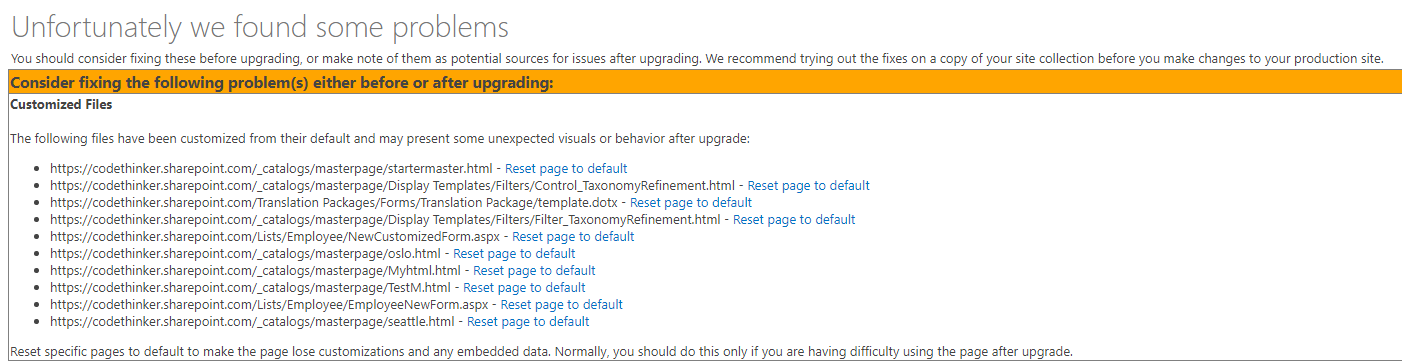
Site Collection Health Check for SharePoint Online will shows all the problems that occurs either before upgrade or post upgrade of you 
site.

So there could be list of incompatibles from your OnPremise site and its artifacts such as

  1. Master Page and Layout
  2. Content Type Conflicts 
  3.  Missing galleries 
  4. Missing Site Templates
  5. Sandbox Solutions and
  6. Unsupported language package references 
You have to resolve all these problems reported by Health Check.

Last but not least,

There could be storage capacity also causes your site to show the performance issue syndrome. You can trace and track of all SharePoint artifacts and its size from "Storage Metric" page (https://tenant.sharepoint.com/_layouts/15/storman.aspx). 


If you short of the storage space , then you can purchase the space from your SharePoint Online administration page for your site collection.

Sunday, April 08, 2018

When to use UsesqlSnapshot with Backup command

Here is the tips and best practice you can follow while taking backup your SharePoint site collection.

Consider the scenario, your site collection is very huge and wanted to take the backup using SharePoint PowerShell command BackUp command and in peak hours, where your users are continuously working on it.


Backup-SPSite http://server/sites/myteam -path D:\SiteBackUp\08-04-18_myteam\08-04-18_myteam.bak

When you using the above command, your site being locked and set to read-only until site backup job completes, So your will see the performance problem and cannot add anything to your site collection.


Backup-SPSite http://server/sites/myteam -path D:\SiteBackUp\08-04-18_myteam\08-04-18_myteam.bak -UseSqlSnapshot

When you use the backup-spsite parameter -UseSQLSnapshot, while backup process is on all the transaction will be saved it SQL Snapshot and later it will update back to respective site collection's content database and the SQL Snapshot will be deleted and free your storage and resources.