Data Lose Prevention (DLP) a policy allows the Exchange Administrator restrict the corporate email which is carrying the critical and sensitive contents is not going beyond its network.
This policy allows the administrator to define rules and policy to monitor and reporting of such activities within their network.
This feature available on Microsoft Exchange Server 2013 , Microsoft Exchange Server 2016 and Exchange Online (part of Office 365 suite)
Sunday, February 26, 2017
Tuesday, February 07, 2017
SharePoint 2016 new features
Here are the few new features of SharePoint 2016, I came across and tried it at my server.
I am going to update this post continuously,
As we know, its digital era and users want to use data from the different legacy system including physical files from the network or bring files from the outside of their network either downloading or uploading.
So file size and its transfer rate per minute is always concern over the poor network bandwidth.
To address the problem, Microsoft comes up with new protocol called "Background Intelligent Transfer Service" (BITS)
.
What is BITS ?
Background Intelligent Transfer Service (BITS) is a component of Microsoft Windows XP and later operating systems that facilitates prioritized, throttled, and asynchronous transfer of files between machines using idle network bandwidth.
BITS uses idle bandwidth to transfer data. Normally, BITS transfers data in the background, i.e., BITS will only transfer data whenever there is bandwidth which is not being used by other applications. BITS also supports resuming transfers in case of disruptions.
I am going to update this post continuously,
As we know, its digital era and users want to use data from the different legacy system including physical files from the network or bring files from the outside of their network either downloading or uploading.
So file size and its transfer rate per minute is always concern over the poor network bandwidth.
To address the problem, Microsoft comes up with new protocol called "Background Intelligent Transfer Service" (BITS)
.
What is BITS ?
Background Intelligent Transfer Service (BITS) is a component of Microsoft Windows XP and later operating systems that facilitates prioritized, throttled, and asynchronous transfer of files between machines using idle network bandwidth.
BITS uses idle bandwidth to transfer data. Normally, BITS transfers data in the background, i.e., BITS will only transfer data whenever there is bandwidth which is not being used by other applications. BITS also supports resuming transfers in case of disruptions.
In SharePoint 2013,You can upload the file maximum size doesn't exceed 2GB to SharePoint document library or SharePoint list. Always remember this upload will use the HTTP protocol and your IIS server also should manage these irrespective of the configuration and load balanced on your SharePoint farm. It always huge pressure on the server.
Now SharePoint 2016, this size limitation has been increased up to 10GB using BITS.
OneDrive for Business uses these technology to store your documents on cloud through its client tool.
Monday, January 09, 2017
Updating the Farm administrator Password
Recently , I have been receiving the password update notification popup on my server. As I installed the trial version of all SharePoint related software on my local computer, Always I am free to play around some configuration testing around IIS , SQL Server and SharePoint.

This time, I tried to update the farm administrator password using SharePoint provided interface in SharePoint Central Administration GUI instead of using the old companion STSADM or through PowerShell Command.
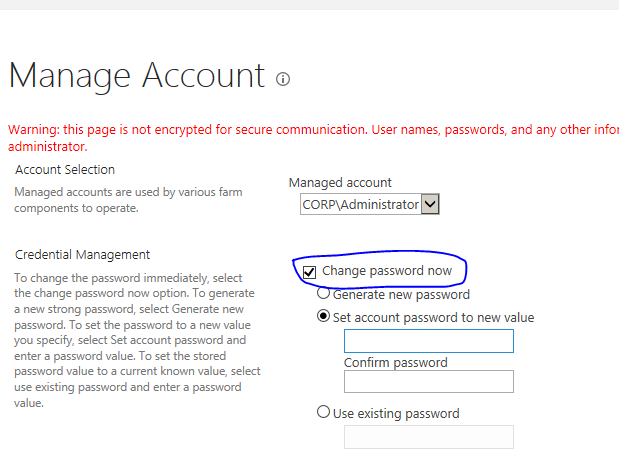

This time, I tried to update the farm administrator password using SharePoint provided interface in SharePoint Central Administration GUI instead of using the old companion STSADM or through PowerShell Command.
Post updates, I have received the error on accessing the SharePoint site and Central Administration site and error was the currently logged in user must have access to SQL Server.
To resolve this issue,
First I have checked all the services related to SharePoint has been started .
In IIS, checked all web application and application pools has been started and restarted it.
Still I am getting the access denied error to SharePoint site and SharePoint administrator site.
This time , I have manually updated the SQL server and SQL Server Agent's account with latest password and reset the IIS.
Now, my SharePoint server is up and running without any error.
Thursday, December 01, 2016
SharePoint TimerJob runs behind the current date and time
Recently a rare question was posted on SharePoint MSDN forum, that reads all the SharePoint Timer Jobs running behind of the server's date and time settings.
And also this leads to incorrect date format on the User Profile Service based application.
When I started think over on what could be the root cause, I opened my Central administrator web application to see all my timer jobs are running correctly.
Then started to scan the services (Start --> Administrative Tools --> Services ) related to SharePoint on my server and learnt that "SharePoint Timer Service"(SPTimerV4) has been stopped and started, still timer jobs in the SharePoint running behind of the current date and time.
Stumped ! All my SharePoint timer jobs are running behind 5 days with 3 hour.

I was trying to find the PowerShell command to adjust the timer job related in MSDN but no such commands with time stamp parameter.
Suddenly I recollect, how my development server undergone the recent changes, windows updates changes to settings. such as language, timezone and password expiry policy on my AD.
a month ago, my BIOS battery started to show its weakness , If you happen to see the different time and date on your computer then its all you need is just change your "BIOS" battery on system.
Its been 5 year old computer with Core i5 processor with 16GB RAM. When I opened the desktop and I realised "How I am lazy chap to clean up my desk and my computer".


I did a month ago, and changed the timezone and time based on my location. All seems to work normally.
Meantime, the password for my server has been expired and I am not used the SharePoint for some days due to busy schedule at my work :)-.
Still the timer job is not shown up to current settings.
After reading this question,
SharePoint Timer Jobs runs behind the current date and time
To resolve these problem on my server and reply to MSDN forum,
I just update my windows up to date and ran the SharePoint Config wizard and all my timer job are running along with correct time settings on my server.
Post configuration wizard running all the timer jobs in the SharePoint started to show the current date and time based on my system settings.

And also this leads to incorrect date format on the User Profile Service based application.
When I started think over on what could be the root cause, I opened my Central administrator web application to see all my timer jobs are running correctly.
Then started to scan the services (Start --> Administrative Tools --> Services ) related to SharePoint on my server and learnt that "SharePoint Timer Service"(SPTimerV4) has been stopped and started, still timer jobs in the SharePoint running behind of the current date and time.
Stumped ! All my SharePoint timer jobs are running behind 5 days with 3 hour.
I was trying to find the PowerShell command to adjust the timer job related in MSDN but no such commands with time stamp parameter.
Suddenly I recollect, how my development server undergone the recent changes, windows updates changes to settings. such as language, timezone and password expiry policy on my AD.
a month ago, my BIOS battery started to show its weakness , If you happen to see the different time and date on your computer then its all you need is just change your "BIOS" battery on system.
Its been 5 year old computer with Core i5 processor with 16GB RAM. When I opened the desktop and I realised "How I am lazy chap to clean up my desk and my computer".


I did a month ago, and changed the timezone and time based on my location. All seems to work normally.
Meantime, the password for my server has been expired and I am not used the SharePoint for some days due to busy schedule at my work :)-.
Still the timer job is not shown up to current settings.
After reading this question,
SharePoint Timer Jobs runs behind the current date and time
To resolve these problem on my server and reply to MSDN forum,
I just update my windows up to date and ran the SharePoint Config wizard and all my timer job are running along with correct time settings on my server.
Post configuration wizard running all the timer jobs in the SharePoint started to show the current date and time based on my system settings.
Subscribe to:
Posts (Atom)